Extension guide
Your guide to LINA
Pin the extension, sign in, allow LINA on the sites you use, then analyze on Reddit, Gmail, or Outlook before you reply.
Three steps to get LINA running in Chrome
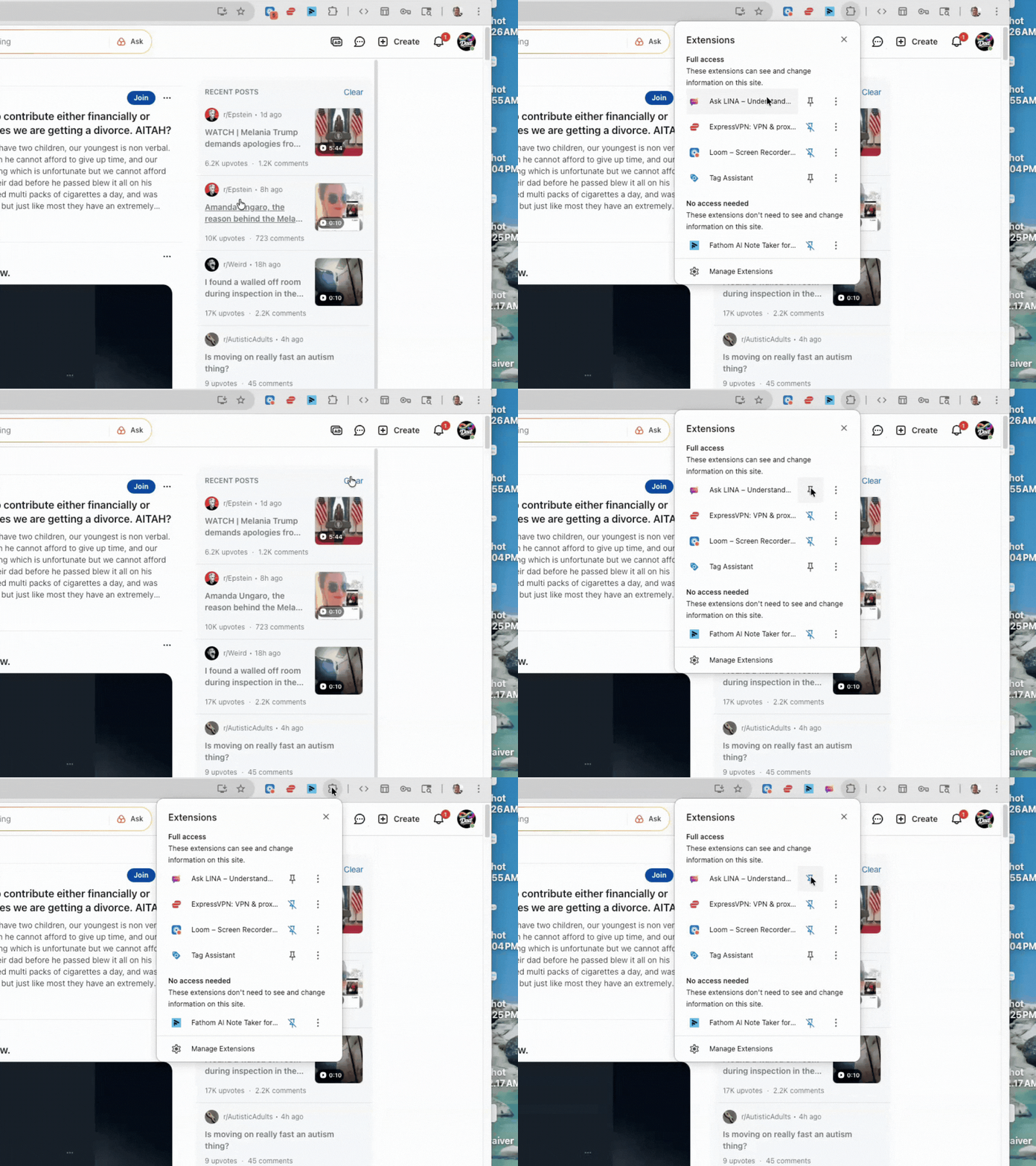
Pin LINA to your toolbar
Click the puzzle piece icon in the top right corner of Chrome. Find LINA by UniquelyND in the list and hit the pin button next to it. That keeps LINA visible in your toolbar so it's always one click away.
Sign in and finish setup
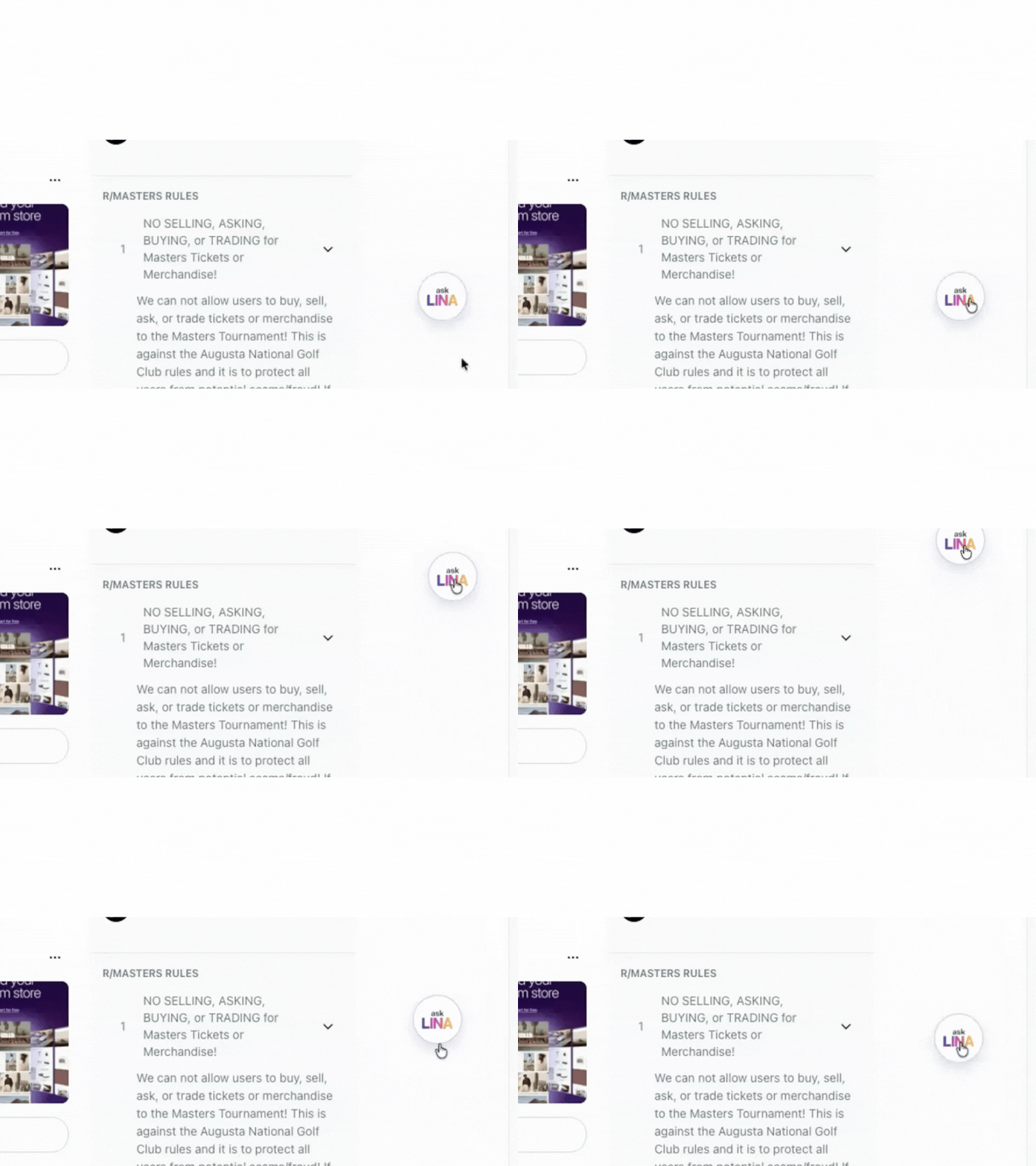
Click the LINA icon in your toolbar to open the side panel. Sign in, create an account, or continue as a guest. During setup you'll choose where LINA can run: Run on supported sites (Reddit, Gmail, Outlook, and more) or Only on sites I approve. You can change this anytime in extension settings.

On Reddit, Gmail, and Outlook
Each platform works a little differently. Allow LINA on the site first, then follow the steps below.
Best for threads and comment replies.
- Open a thread page (a URL with /comments/ in it).
- Look for the floating LINA icon near the bottom of the screen. Drag it wherever you like.
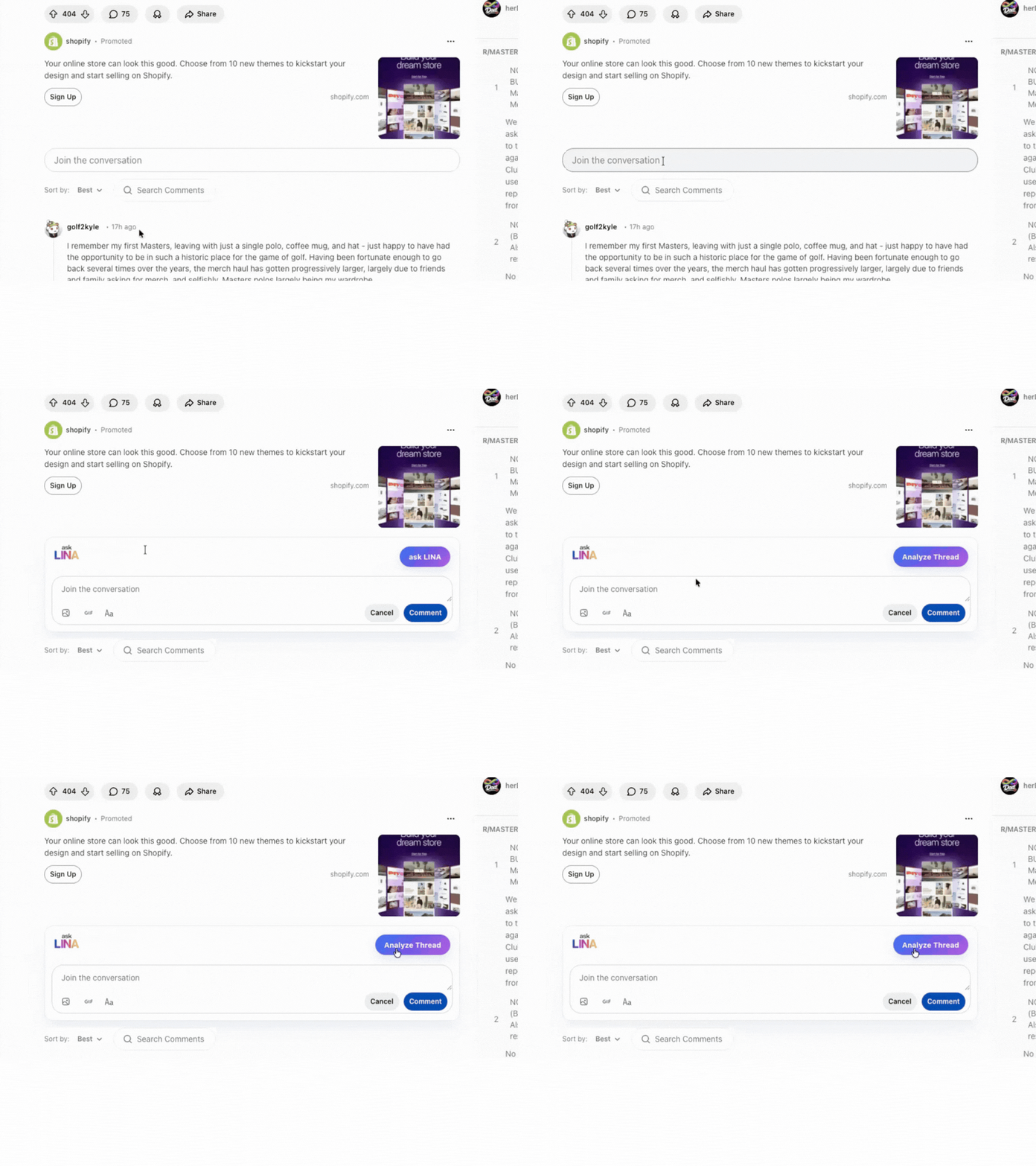
- Click Analyze Thread in the side panel, or start a reply and click Analyze Draft for coaching on what you're writing.
Gmail
Works in your inbox and compose window.
- Open Gmail and allow LINA on mail.google.com if prompted.
- Hover over an email in your inbox to load the thread, or open a message you're replying to.
- Open the LINA side panel and click Analyze. LINA reads the message you're viewing.

Outlook
Works on Outlook on the web.
- Open Outlook on the web and allow LINA on that site if prompted.
- Hover over a message in your inbox or open the email you want help with.
- Open the LINA side panel and click Analyze to see tone, intent, and response guidance before you hit send.

Good to know
A few things that'll make your experience smoother.
Nothing you scroll past gets sent anywhere. LINA only reads what you choose to analyze.
In allowlist mode, LINA won't run on a site until you click Allow on this site. You control every site.
On Reddit, click Analyze Thread or Analyze Draft. In Gmail and Outlook, hover the message first, then analyze in the panel.
On any other page, highlight text, right-click, and choose Ask LINA for a quick analysis.
That's it. Go try it.
Pick a site, allow LINA when asked, and analyze your next message before you send it.
Something not working? Visit support or email support@uniquelynd.com